Today, at White Rabbit Ashland, I gave a talk (and demo) about how I use Gemini Notebook (formerly known as Google NoteBookLM). Below you will find the notes from my presentation. Note: Come back periodically to this blog post as I update the [TODO] sections over the next few days after tonights talk.
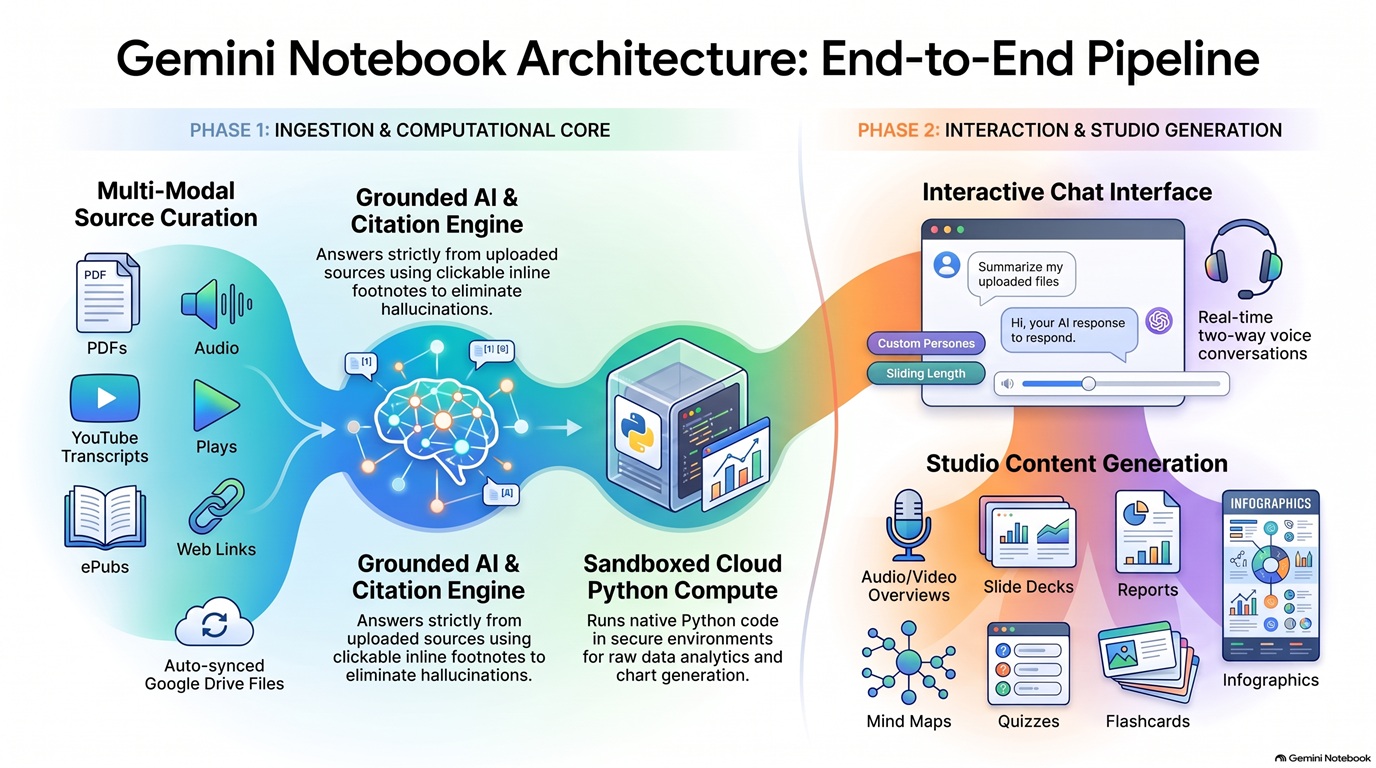
Top 11 reasons why I use Gemini Notebook (instead of chatbots)
- I can curate the sources.
- Works for a wide range of use cases.
- I can audit/validate the sources.
- Supports the sources types I want to use / YouTube, research articles, tech news.
- Has Python programming in a secured sandbox – [TODO: add section showing how to upload a CSV file and request graphs and analysis of the data. Follow on TODO – create custom Python code to process the CSV file data]
- Generates the types of digital assets I can use for real work – blog posts, infographics, videos
- Great at summarizing content – pope’s AI 94 page document to 4 pages
- Infographics are great visual summaries to add to blog posts and articles
- Video overviews for YouTube video posts (now with shorts)
- Discord server for feedback and feature requests.
- Google Pro level gives me what I need
Use cases
For Business: [TODO – add text for each use case]
- Client Acquisition & Agency Lead Generation
- SEO & Content Marketing Workflows
- Raw Data Analysis & Cloud Code Execution
- Employee Onboarding & Interactive Training
- Executive Briefings & Presentation Generation
- Market Research & Competitor Intelligence
- Mobile Knowledge Management & Real-Time Q&A
Research Use Cases [TODO – add text for each use case]
- Source Grounding & Traceable Citations
- Contradiction Audits & Gap Analysis
- Autonomous Web Discovery & Book Integration
- Academic Persona & Tone Tuning
- Raw Data Analysis via Python Cloud Sandbox
- Table Extraction & Google Workspace Sync
- Visual Presentations & Audio Overviews
Student Use Cases [TODO – add text for each use case]
- Interactive Self-Testing & Exam Reviews
- Mobile Lecture Recording & Note Capture
- Mobile Voice Conversations & Audio Study
- Verifiable Research & Literature Synthesis
- Visual Explainer Videos & Learning Overviews
- Paper Drafting in Google Docs
Feature Requests
You can use the Gemini Notebook Discord server to give feedback, bug reports and feature requests.
- Videos using my voice
- Multi-presenter video overviews (audio overviews have 2 person conversation).
- Programming API programming languages.
- Language Translations for reports.
- Cross notebook joins (you can add sources to multiple notebooks).
- Mobile app – delete sources UI needs improvements.
What file formats can be exported from Gemini Notebook?
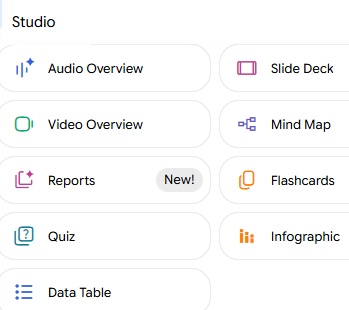
Gemini Notebook allows you to export deliverables across several formats depending on whether you are generating assets through Studio, exporting directly to Google Workspace, or running code in the Python sandbox:
- Cloud Code Execution & File Deliverables
When Gemini Notebook runs Python code in its sandboxed environment to analyze data or build custom outputs, you can generate and download the following file formats:
Visual Charts & Graphics: PNG (.png) and SVG (.svg).
Spreadsheets & Datasets: Excel (.xlsx) workbooks and CSV (.csv) data files.
Documents & Written Reports: PDF (.pdf), Microsoft Word (.docx), Markdown (.md), and JSON (.json) files.
Presentations: Microsoft PowerPoint (.pptx) decks.
- Direct Google Workspace Exports
For text notes, reports, and extracted data tables, the three-dots menu provides one-click exports:
Google Docs: Export written reports, notes, and study summaries directly into a new Google Doc.
Google Sheets: Export structured data tables directly into a new Google Sheet.
- Studio Multimedia Formats
Audio Overviews (Podcasts): Downloadable as MP3 audio files to listen to on the go.
Video Overviews & Shorts: Downloadable MP4 video files featuring narrated animations.
Infographics, Mind Maps & Slide Decks: Visual outputs and slide decks generated in the Studio panel can be exported or downloaded as image/presentation assets.
What source document types can Gemini Notebook process?
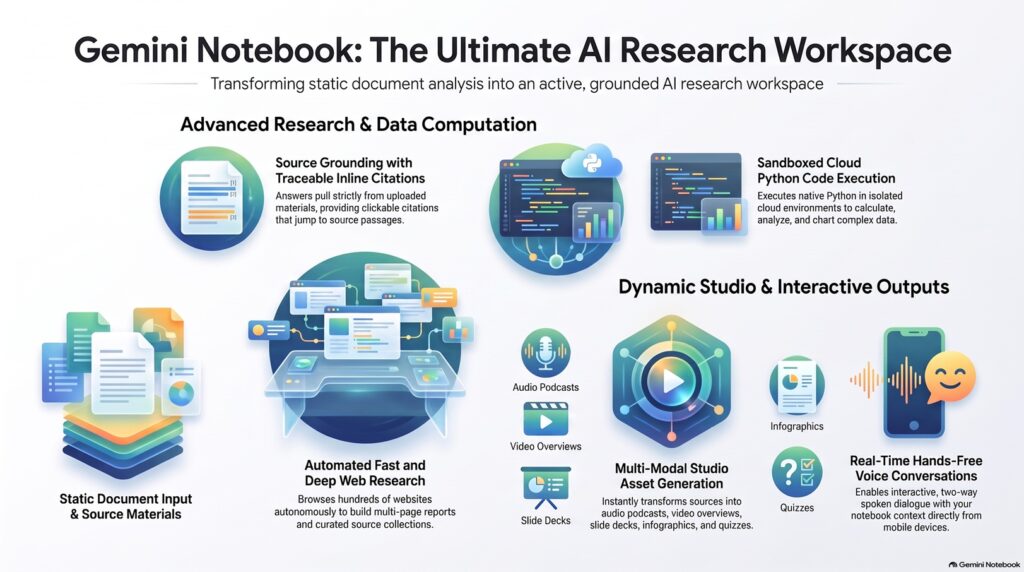
Gemini Notebook supports a broad array of document types, multimedia files, and web sources. Every source added is grounded with traceable inline citations back to the original text or media passage. The following is the list of supported source document types by category:
Documents & Office Files
PDF Files (.pdf)
Microsoft Word (.docx)
Google Docs (auto-updated and synced from Google Drive)
Plain Text (.txt) & Markdown (.md) files
Spreadsheets & Tabular Data
CSV Spreadsheets (.csv)
Google Sheets (up to 100,000 tokens per file)
Presentations
Microsoft PowerPoint (.pptx)
Google Slides (up to 100 slides)
Books & E-books
ePub Files (.epub)
Google Play Books: Eligible purchased e-books imported directly from your Google Play library
Audio Recordings
Audio files are automatically transcribed upon import into searchable text sources.Supported Audio Extensions: MP3, WAV, M4A, AAC, OGG, FLAC, AIFF, WMA, OPUS, AMR, 3GP, AVI, MPEG, and more.
Images (supported Formats)
Images provide visual context for queries and analysis: Supported Extensions: AVIF, BMP, GIF, HEIC, HEIF, ICO, JP2, JPE, JPEG, JPG, PNG, TIF, TIFF, and WEBP.
Web, Video & Interactive Content
Web URLs: Scraped text content from public HTML web pages.
YouTube URLs: Text transcripts extracted from public YouTube videos with captions.
Copied & Pasted Text: Custom text snippets pasted directly into the upload box.
Gemini App Chats: Conversation logs saved directly into your notebook from the Gemini app.
What are the source limits?
Gemini Notebook enforces the following source and notebook limits:
Per-Source Limits
- Word Limit: Up to 500,000 words per individual source.
- File Size: Up to 200 MB for local file uploads.
- Google Slides: Up to 100 slides per presentation.
- Google Sheets: Up to 100,000 tokens per spreadsheet.
Notebook Source Capacity
- Free Plan: Up to 50 sources per notebook.
- Paid Subscriptions: Up to 300 sources per notebook.
Gemini Research Modes
Fast Research and Deep Research serve distinct research workflows in Gemini Notebook, depending on whether you need quick file lookups or an exhaustive automated synthesis.
Comparison Summary
| Feature | Fast Research | Deep Research |
| Speed & Processing | Delivers instant search results. | Operates in the background for a few minutes while analyzing sources. |
| Search Scope | Searches either the Web or your Google Drive. | Autonomously browses and examines up to hundreds of websites across the web. |
| Primary Use Case | Quick lookups, finding specific Drive files, or adding targeted web links. | Starting research on a brand-new topic from scratch or conducting in-depth market/academic surveys. |
| Output Generated | A list of matching search results with titles and brief relevance descriptions. | A structured multi-page research report plus a complete list of all underlying sources. |
Key Differences
Autonomy & Depth: Fast Research acts as a rapid lookup tool that presents matching pages or files for your review. Deep Research functions as an agentic assistant that reads through dozens or hundreds of web pages, evaluates the findings, and synthesizes them on its own.
Google Drive Integration: Fast Research allows you to search your Google Drive using natural language queries (such as “slides from Claire”) alongside web search. Deep Research focuses primarily on deep web-wide exploration.
Report Generation: Fast Research returns standalone source links for manual selection. Deep Research automatically compiles a multi-page synthesis report that you can import into your notebook alongside the individual source URLs.
Cautionary Note: you should always check the returned links before you choose to add the URLs to your sources.
Power Tip: How to quickly add a YouTube playlist of videos into one of your notebooks.
I wanted to quickly add all of the YouTube Stanford University lectures done by computer scientist Donald Knuth. I found the following playlist. The trick was to find a way to quickly get all of the lecture URLs from the playlist. By searching on Google I found the following Vercel app URL “How to extract URLs from any YouTube or YouTube Music playlist”:
https://export-youtube-playlist.vercel.app/tools/youtube-playlist-link-extractor
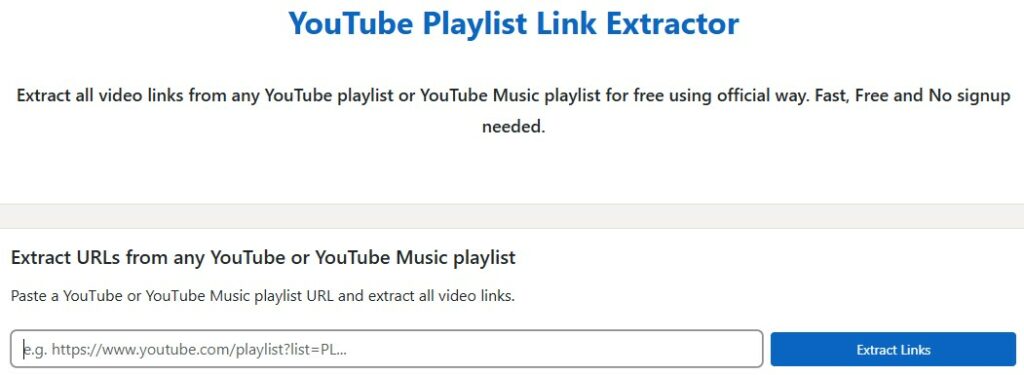
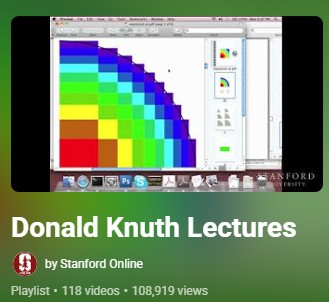
Use the following playlist URL in the playlist extractor and click the “Extract Links” button : https://www.youtube.com/playlist?list=PL94E35692EB9D36F3
After the extraction completes (some confetti will fly to alert you) and get the following result (with the URLs to more than 100 of his YouTube lecture videos):
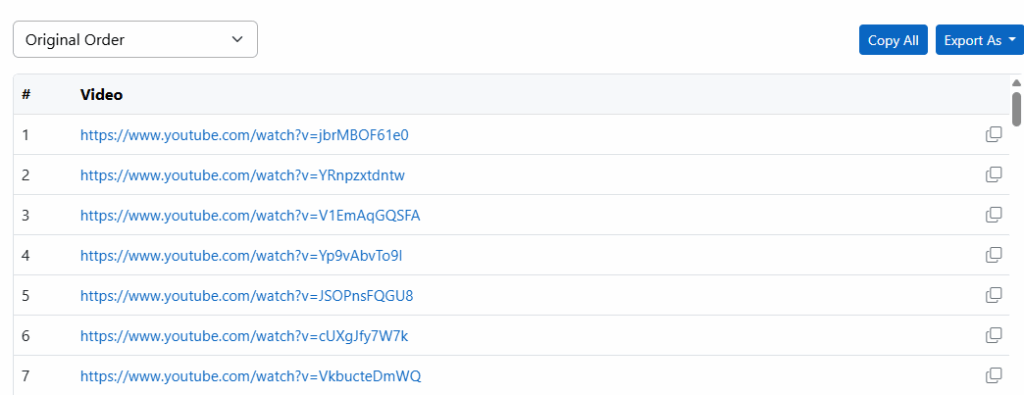
Click the “Copy All” button. Note: you can also use the “Export As” button to create CSV,TXT and other text files containing the list of video URLs.
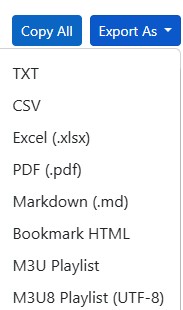
You can then quickly add all of his lectures to your Notebook.
{ToDo] – How to share a Gemini Notebook with others, and make a publicly available notebook
[TODO] – Check out Google’s Gemini Notebook public notebook
Sources used in creating this blog post
Introduction to Gemini Notebook – published date: December 5, 2023